
How to Add a Product in PrestaShop 9.x? Step-by-Step Guide
PrestaShop 9.x Guide
How to Add a Product in PrestaShop 9.x? Step-by-Step Instructions
Adding a product in PrestaShop 9.x begins in the administration panel, in the product catalog section. In this guide, we'll show you how to create a new product, add images, a description, price, stock status, and SEO data, and publish it to your online store.
Adding a product in PrestaShop 9.x - where to start?
Before you begin, prepare the product name, images, short and full description, price, tax rate, stock status, and the category the product will be placed in. This will make adding the product in PrestaShop faster, and the product page will be immediately complete for the customer and better prepared for SEO.
In this example, we're describing a standard physical product, which is the most common scenario in an online store. If you're selling a product with variants, such as different sizes or colors, some of the steps will be the same, but you'll also need to configure product combinations.
1. Go to the Catalogue section > Products
Log in to the PrestaShop 9.x administration panel and select from the side menu Catalogue > ProductsThis is where you'll find a list of products already added to your store. From this list, you can create new products, edit existing items, check their status, and monitor basic data such as price and quantity.
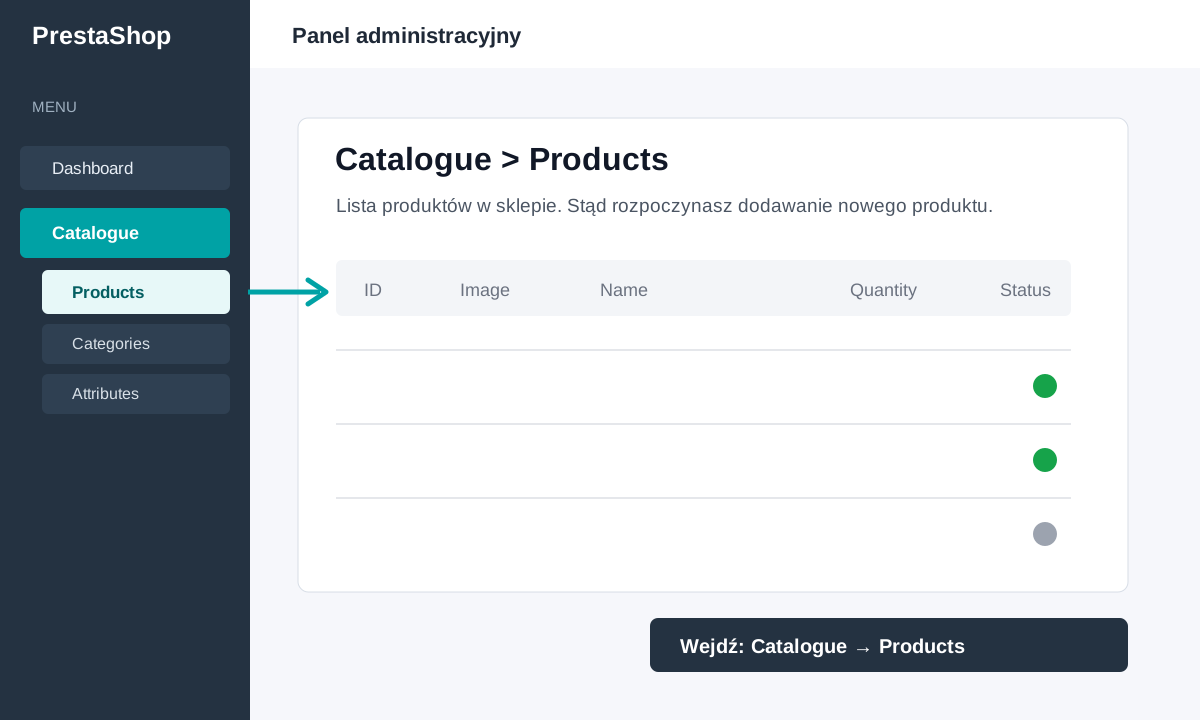 In PrestaShop 9.x, you can add a new product from the Catalogue menu. > Products.
2. Click the New product button
On the product list page, click the button New product, located in the upper right corner of the panel. PrestaShop will open a product addition form. This is where you can fill out all the information needed to sell the product in your store.
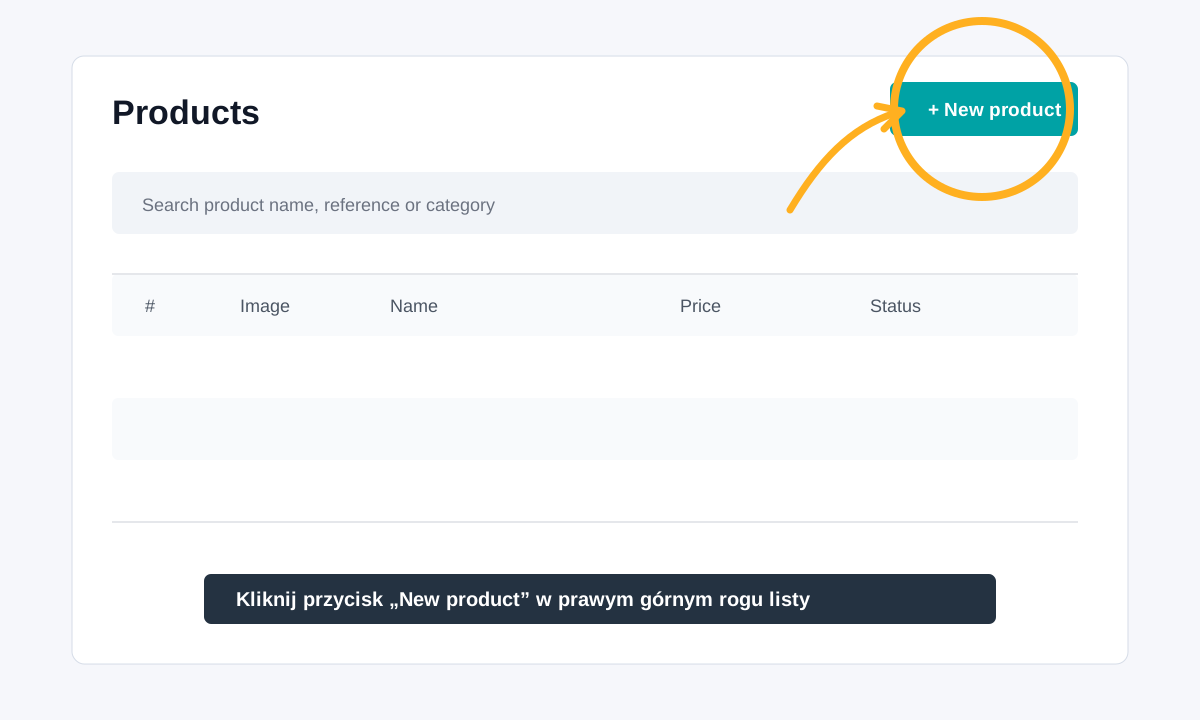 The New product button creates a new product card in the store catalog.
3. Enter a name and select the product type
At the beginning of the form, enter the product name. A good name should be specific, understandable, and include the most important phrase a customer might use to search for the product. Next to the name, select the product type. For standard goods shipped to the customer, select Standard product.
PrestaShop 9.x also allows you to create products with variants, product bundles, and virtual products. The type you choose is important because it affects the available fields in the form and subsequent product configuration.
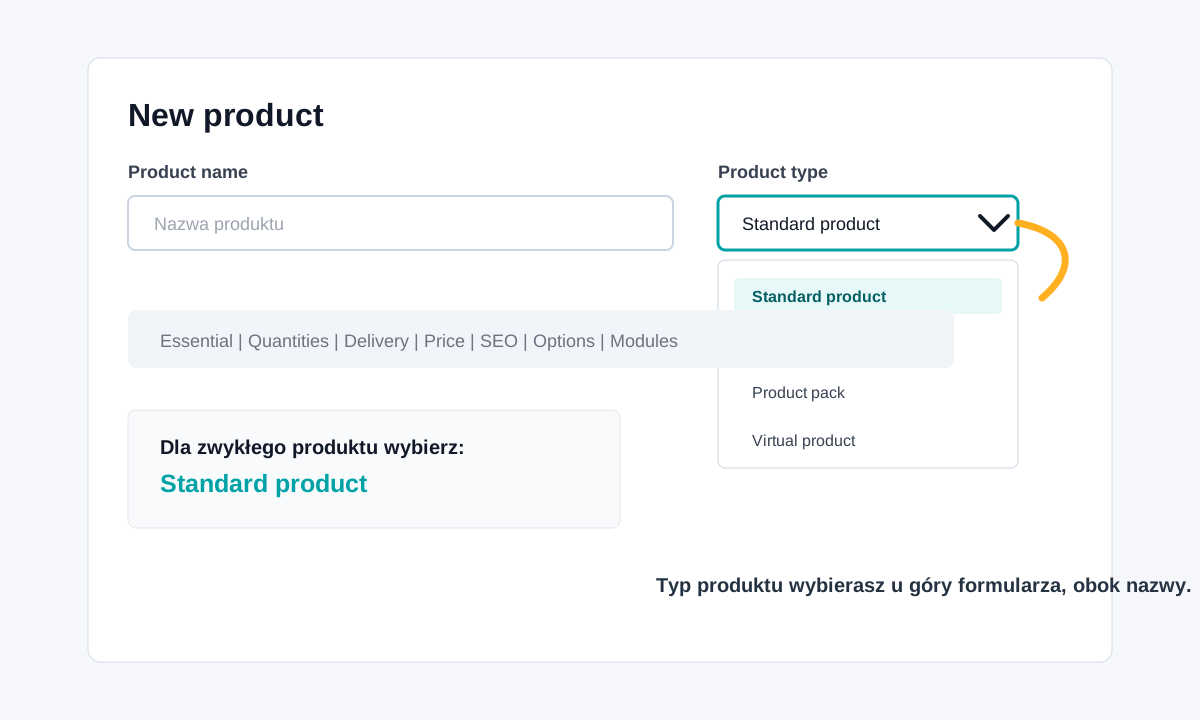 For a regular physical product, select the Standard product type.
4. Complete the Essential tab
Tab Essential It contains basic information that will later be visible on the product page. This is one of the most important parts of the form, as it affects both the product's appearance in the store and its visibility in search engines.
- Product name - use a natural, full product name, without excessive keyword stuffing.
- Product photos - add a main photo and additional shots that show the product from different angles.
- Short description - write 2-4 sentences summarizing the most important features and benefits.
- Full description - describe the application, technical parameters, kit contents, material, compatibility or other information needed before purchasing.
- Categories - assign the product to the correct category so that the customer can easily find it in the store.
- Brand or manufacturer - complete if the store uses brands, filters or manufacturer websites.
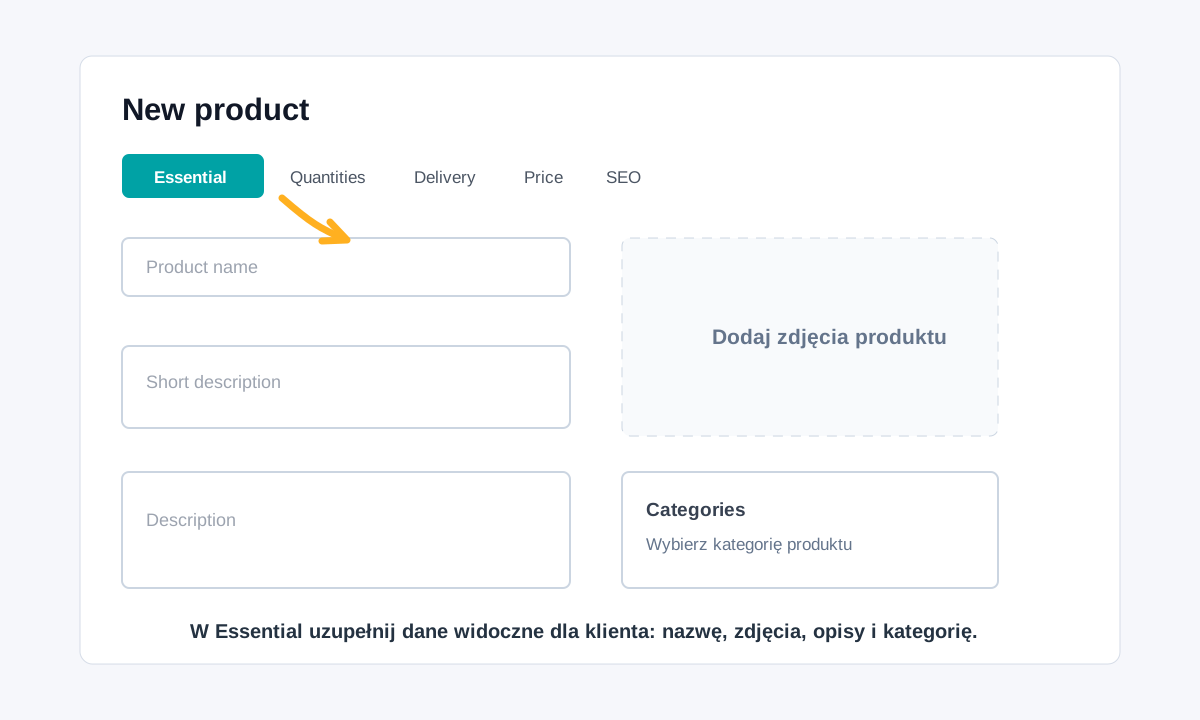 In the Essential tab, you add the data that the customer will see on the product card.
5. Set the quantity, delivery, price and SEO of the product
Once you've completed the basics, proceed through the product form. Don't skip the price and inventory information, as without them, the product may not be ready for sale or may mislead the customer.
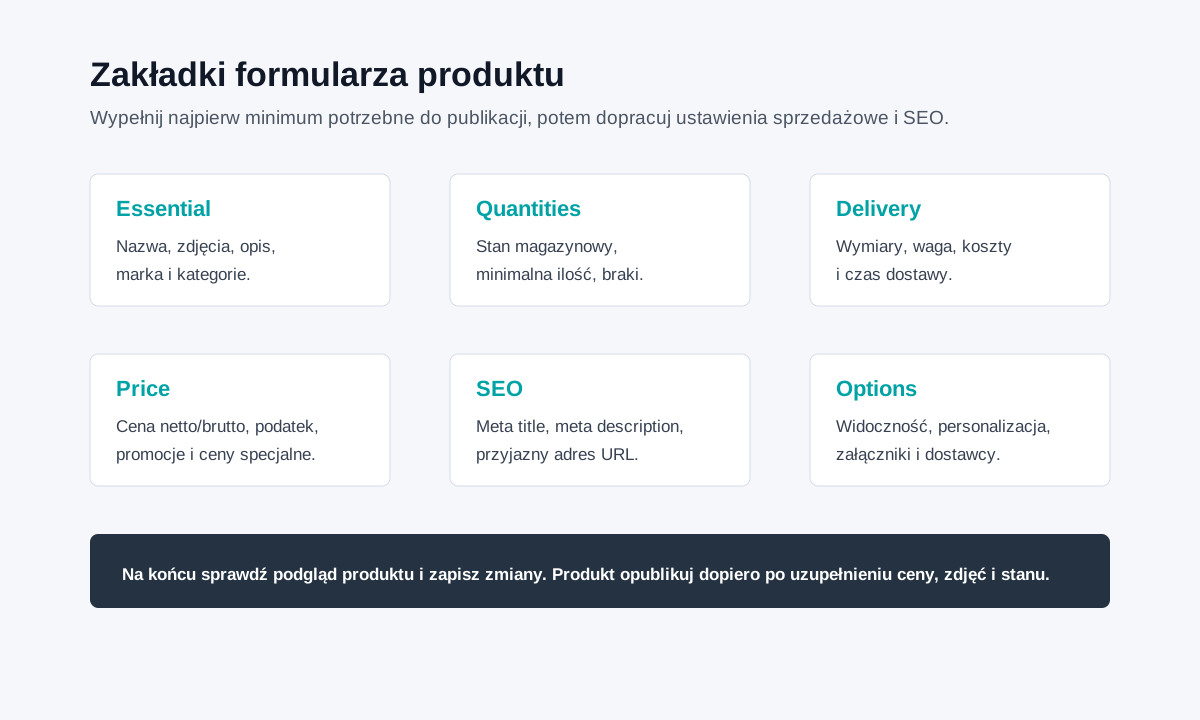 The product form in PrestaShop 9.x is divided into thematic tabs.